- Go to Conversations -> Templates -> New template -> From scratch
- Enter a name and subject for your template
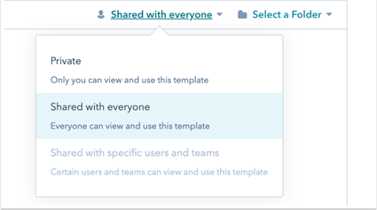
- To make the template private, click ‘Shared with everyone’ dropdown menu -> Private
- To add the template to a folder, click the ‘Select a folder’ dropdown menu
- Enter the body of your email.
- Use the formatting options at the bottom of the editing window to modify the text.
- To edit the font style and size, or edit the text alignment, click the More dropdown menu.
- To add hyperlinked text, click the link icon link.
- To insert an image, click the image icon insertImage.
- To insert a snippets, sales document, meeting link, or video, click the Insert dropdown menu.
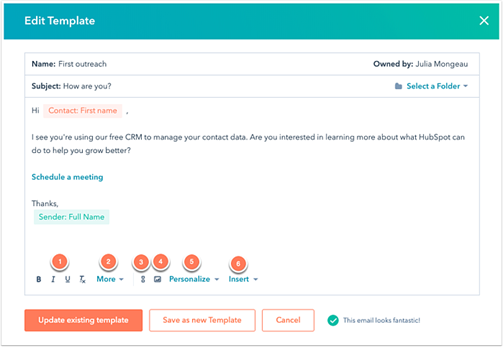
- When you've finished creating your template, click Save template.
You can now send template emails from the CRM and your email inbox using the sales extension, or add template emails to your sequences.
- After creating your email template, you can use it to send emails from the CRM.
- In your HubSpot account, go to Contacts/Companies/Deals/Tickets
- Click the name of a record
- In the left panel, click the Email icon email.
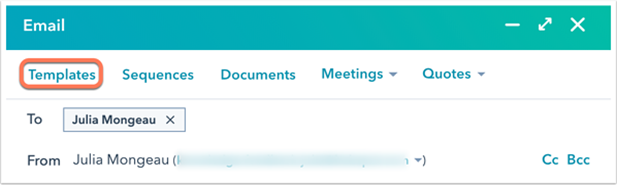
- In the pop-up box, click Templates.
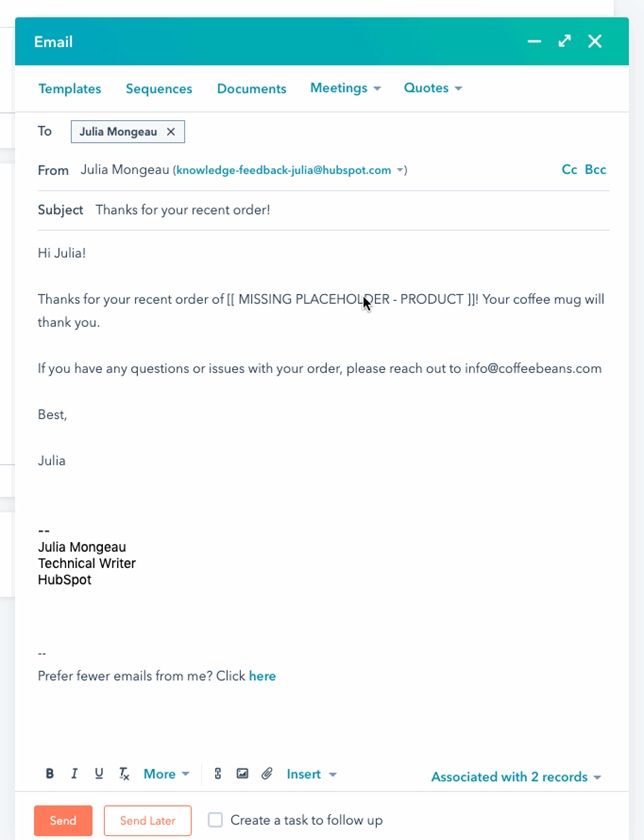
- In the dialog box, hover over the template you want to send and click Select.
- Customize the content, the click Send. If you used any placeholder tokens in the template, update the placeholder text before sending.
- The email will be tracked automatically, and the information will be added to your template report data.
- If you want to delete a template:
- Go to Conversations -> Templates
- Hover over the template you want to delete and click Delete.
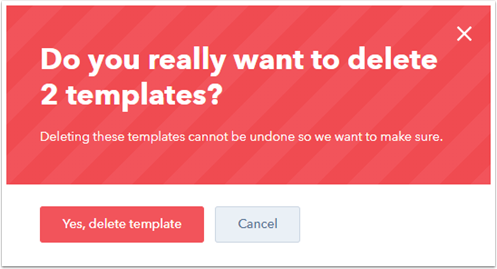
- To bulk delete templates, select the checkboxes next to the templates you want to delete. At the top of the table, click Delete. In the dialog box, click Yes, delete.