Snippets are short, reusable text blocks that can be used on contact, company, deal and ticket records; in email templates; in chat conversations; and when logging an activity or note.
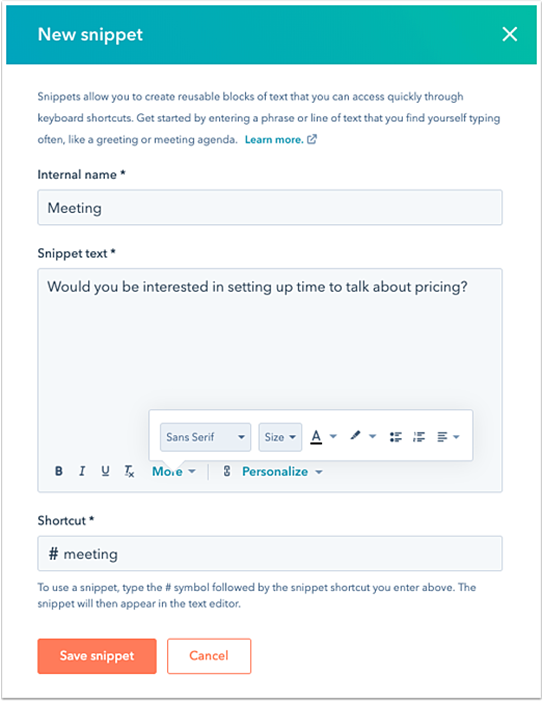
Go to Conversations -> Snippets, in the upper right corner, click Create Snippet
In the dialog box, in the Internal name field, enter a name for the snippet.
Enter the body of your snippet in the Snippet text section
To modify the text, use the formatting options at the bottom of the editing window.
To edit the font style and size, or edit the text alignment, click the More dropdown menu.
To add hyperlinked text, click the link icon link.
Enter a name for the snippet shortcut in the ‘Shortcut’ section. This shortcut will be used to insert the snippet in a record, email template, live chat conversation, or when logging an activity.
When you've finished creating your snippet, click Save snippet.
You can also organize your snippets into folders:
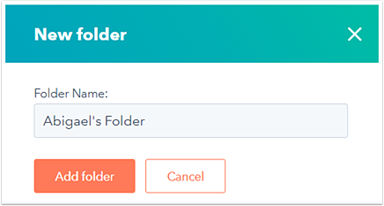
On the Snippets dashboard, click New folder.
In the dialog box, enter a name for your folder, then click Add folder.
To move a snippet into a folder, hover over the snippet and click More -> Move -> Select a folder -> Move.
Use snippets to:
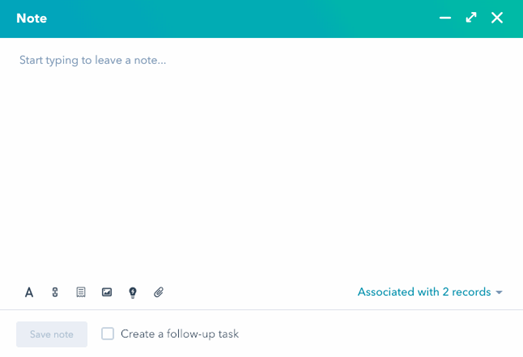
leave notes about prospects in the CRM
quickly pull in important details when writing an email to a prospect/as quick response during a live chat conversation.
There are two ways to add a snippet:
Type the # symbol into the text editor
Start typing the snippet shortcut
Select the snippet from the dropdown menu.
The snippet will automatically populate in the text editor.
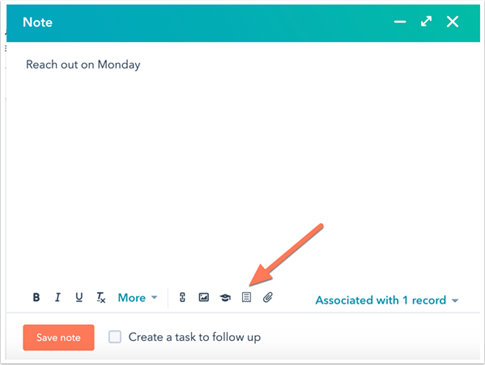
At the bottom of the text editor, click the snippets icon, then select a snippet from the dropdown menu.