%20(2).png?width=1280&height=539&name=666079-ncuk-strap-logo-red-logo-no-background%20(1)%20(2).png)
- Make a call with a phone number or name.
- See your call history and filter your calls in a new way.
- View or add contacts in Microsoft Teams.
- Add someone to a call in Microsoft Teams.
- Put a call on hold in Microsoft Teams.
- Transfer a call in Microsoft Teams.
- Check your voicemail in Microsoft Teams.
- View your call history in Microsoft Teams.
- Remove a call from call history.
- Accessing your voicemail
1. Make a call with a phone number or name
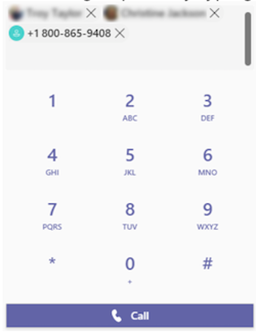
If you have a calling plan enabled, you can call anyone from Teams. To dial a number from Teams, go to Calls and from the dial pad, enter the number of the person you want to reach. Then click Call  . To call using someone’s name, go to Calls and from the dial pad text box, type the name of your contact.
To make group calls, enter multiple names and/or numbers into the dial pad, and click Call .
.
2. See your call history and filter your calls in a new way
Your call history moves to the centre of the calls experience and shows a list of past calls (including missed calls). To return a missed call, hover over a contact from your call history list and select More actions > Call back . You can also chat with that contact, add them to speed dial, and add them to your contacts, all from the More actions menu.
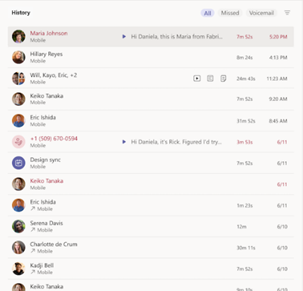
To review a list of calls you have missed, lists of calls that came in, and your voicemail, select between the available filters at the top of the call history list.

3. View or add contacts in Microsoft Teams
To view your Teams contacts, select Calls  and choose Contacts on the left. Here you will find an A-Z list of all your contacts and a search bar that you can use to find someone specific.
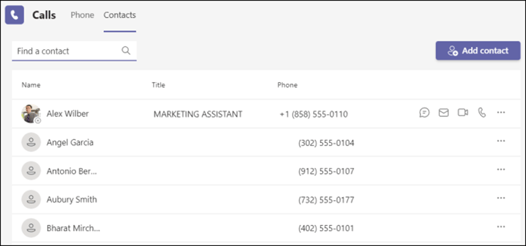
If you want to add a new contact to your list, click Add contact at the top of your list to get started.
You can also access your Speed dial contacts and any call groups you have created—all on the right side of Teams. Just select Calls  and access them there at any time.

Things you can do from here:
- Speed dial allows you to quickly reference and call back any recent contacts or contacts that you have added to speed dial.
- Call groups organise your teammates to help you find or reach certain people based on a role or team.
- To add someone to speed dial or any call group, select More actions
 next to the group name and choose Add a contact to this group.
 - You can quickly call any contact back by selecting Call
 below their name.
To create a new contact group, first go to Chat  on the left side of Teams. Then select the Chat dropdown at the top and select Contacts.
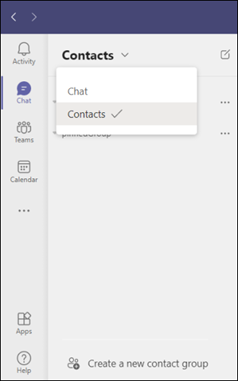
Next, choose Create a new contact group at the bottom. Then follow the instructions to create a new group.
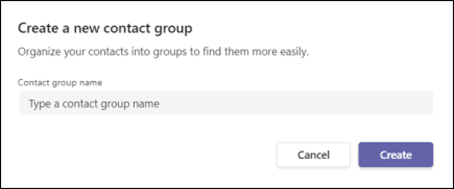
4. Add someone to a call in Microsoft Teams
When you are already on a call, you might want to add someone new and create a group call.
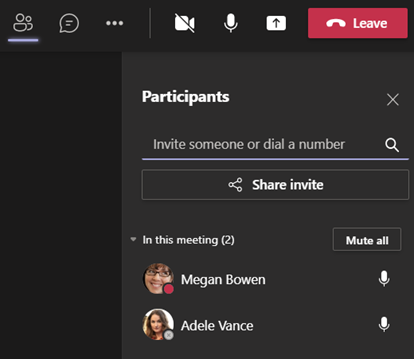
To add someone new to a group call, select Show participants  in your call controls, then type their name or phone number in the search box.
If you are already on a call, you can answer or start a new call anytime. Your current call will be placed on hold and take you straight to your new conversation.
While a call is on hold, all participants will be notified, and they will not be able to see or hear you. You will see your on-hold calls displayed on the left side of your call window, so you can get back to them when you are ready to resume the call.
5. Put a call on hold in Microsoft Teams
To place a call on hold, select Hold at the top of your call window. You will not see this option if you are in a scheduled Teams meeting.
Everyone on the call will be notified that they have been put on hold, and you can continue your call by selecting Resume.
People on hold (including you) will not be able to see or hear anyone else on the call. Screen sharing is temporarily suspended, too. Everything will return to normal once you resume your call.
Anyone who is on a PSTN line will hear music when they are put on hold.
Note: The maximum number of calls you are able to put on hold is limited to five at a time, with one active.
6. Transfer a call in Microsoft Teams
Transfer your one-on-one calls in Teams.
When you are in a call, select Transfer at the top of your call window.
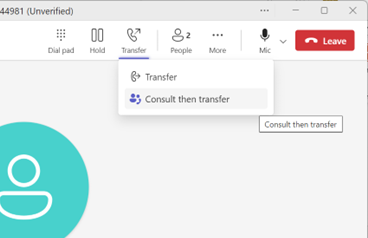
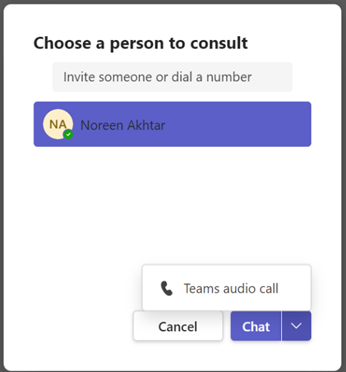
Click on Consult then transfer.
Under Choose a person to consult, start typing the name of the person you want to reach or type in the number you want to call, and select them when they appear.
Consult with them by calling or using chat.
When you are ready to transfer the call, click on Transfer next to the Dial Pad (highlighted in yellow below).
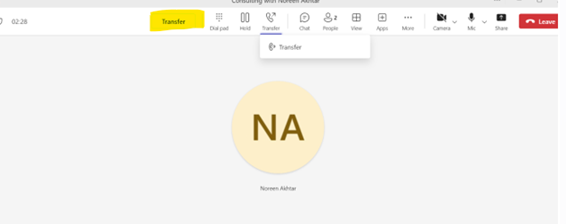
Please note: the Transfer button with the telephone icon will not transfer the customer to the relevant person. This feature allows you to make a new transfer. E.g. this will transfer the colleague (not the caller) to another member of staff.
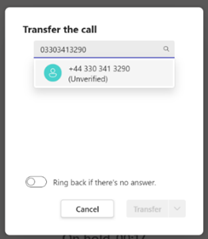
If you transfer the call without consulting first, you can opt to ring back if there is no answer.
7. Check your voicemail in Microsoft Teams
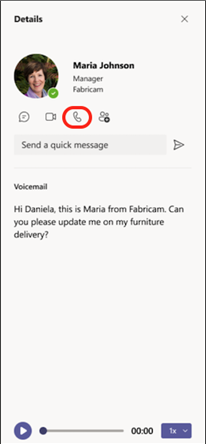
Your voicemail is a familiar tool for getting the most out of your calling experience in Teams. To access your voicemail, go to Calls  > History and then select Voicemail.
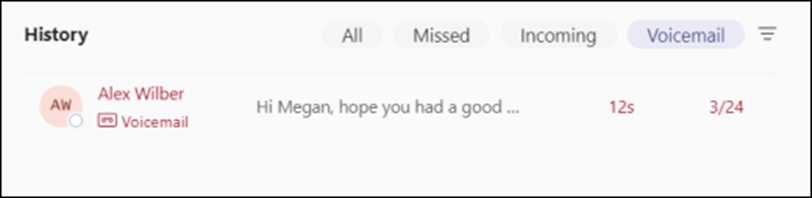
Call someone back by hovering over a voicemail and selecting Call  or by selecting More actions and choosing Call back
  .
.
When you select a voicemail, you can review and access details and other information—all on the right side of Teams.

From here you can:
- Listen to your voicemails by using the playback controls at the bottom.
- Review your voicemail summaries and transcripts (if available).
- Call someone back by using the call controls under the contact details at the top.
- Customise voicemail settings(such as recording a greeting and specifying call answering rules).
8. View your call history in Microsoft Teams
Your call history is located in the centre of the calls experience and shows a list of past calls (including missed calls).
Go to Calls  > History. From any call in the list, select More actions > Call back
  to begin a call automatically.
You can also chat with that contact, add them to speed dial, and add them to your contacts—all from the More actions  menu.
menu.
9. Remove a call from call history
To remove a call from your history:
- Go to Calls
 > History.
 - Hover over the call you would like to remove and select More actions > Remove from view.
Removing a call from your call history removes it from view on all your devices. Admins can still retrieve call data from removed calls.
10. Accessing your voicemail
Your voicemail is another familiar tool for getting the most out of your calling experience in Teams.
Go to Calls > History and then select Voicemail in the upper-right. From here you can:
- Review messages and transcripts from calls
- Customise call rules
- Record a greeting
- Call anyone who has left you a message
Call someone back from your voicemail by selecting More actions  next to their name > Call back
  from the call history list, or by clicking Calls
  under the contact Details on the right side of Teams.