%20(2).png?width=1280&height=539&name=666079-ncuk-strap-logo-red-logo-no-background%20(1)%20(2).png)
Tickets for the Academic Operations pipeline are created via the centresupport@ncuk.ac.uk email.
When a study centre sends an email to this inbox, a new ticket is created with the status set to New.
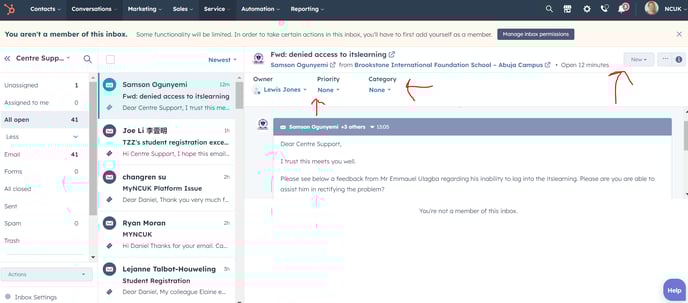
The Academic Operations Executive is responsible for assigning an owner and category to the ticket. They also have the option to assign a priority, if desired.
If the Executive successfully resolves the issue and responds to the study centre, they should change the status to Closed.
If a holding reply is necessary, the status should be changed to Work in progress – waiting on us.
If additional information is needed from the customer, the status should be changed to Work in progress – waiting on customer.
All of these actions can be performed through the conversations inbox, as indicated by the red arrows shown here:
It is also possible to view the ticket pipeline as a list or a board by adjusting the view settings.
The pipeline can be filtered in any way desired. For example, by selecting Ticket Status = none of closed, all open tickets can be displayed.
Additionally, tickets can be sorted by creation date to easily identify those that have been outstanding the longest.
There are pre-configured views in the pipeline that allow tickets to be viewed by category. Simply adjust the view from the pipeline to 'Password,' for example.
Categories can be useful to report on and can be used to set workflows to allocate to members of staff in future who only deal with that category.
To summarise :
- Each ticket should always be categorised.
- Notes should be added to the ticket when working on an issue to keep everyone informed. It is possible to pin the note to the top of the ticket to ensure it is easily accessible. Individuals can also be tagged using the @ symbol if necessary.
- Tickets should be closed once they have been resolved.
- If a customer replies to a closed ticket with a different issue, a new ticket should be manually opened and emailed regarding the new issue. The ticket should be categorised accordingly. If the reply is a simple thank you message, the ticket can be re-closed.
- It is important to note that closing only the conversation will keep the ticket open. This should not be normal practice but can be intentional and useful in certain situations.
- When closing a ticket, using the snippet #closed can encourage the customer to start a new email if they have a new issue.