%20(2).png?width=1280&height=539&name=666079-ncuk-strap-logo-red-logo-no-background%20(1)%20(2).png)
If you are completing a contract renewal or other change, you can use this pipeline. If you are adding a new programme or study centre site, you should use the main study centre pipeline.
A deal in this pipeline can be created in two ways: manually; or automatically, via a workflow related to the customers contract expiry date. Deals will be created when a contracts expiry date is within 12 months.
There are 5 deal stages to move through:
- Discussion
- Draft Contract Issued - MM Review
- Submitted to Commercial Group
- SLT Approved - Send Contract
- Contracted
- Contract Not agreed
Creating a Deal
To enter a deal manually:
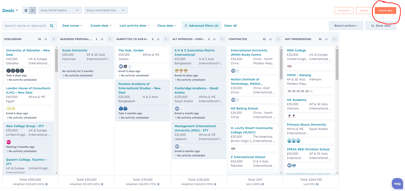
- Click Sales>Deals>Create Deal
- Name your deal using the study centres name d the reason for the change.
- Select the ‘Study Centre Change Control Pipeline’
- Assign the Deal to yourself
- Choose an expected ‘close date’ – This is a date you would like or expect to sign contracts by.
- Associate at least your main contact with the deal
- Associate the study centre with the deal – the Primary company should be the Study Centre itself. You can also use the legal company such as a parent company but make sure that this a secondary company rather than the primary.
You should always create one deal per study centre as they will have unique identifiers and fees for each centre. You can combine into one contract manually at the contracting stage if you wish by informing the contracts manager.
Discussion
During the discussion stage with customer, you will start negotiations and should begin to fill in the various fields in the contract change control section of the deal. The billing name, contracted partner name and contracted partner address should be pre populated based on your company association.
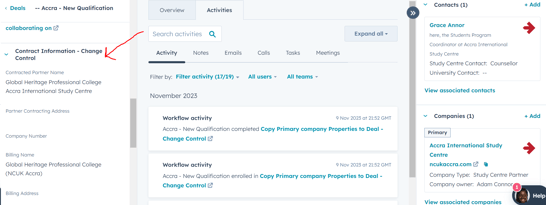
You also need to complete the qualification fields for targets.
Adding Line Items
When you have an idea of the qualifications the centre is renewing pricing for or adding, you will need to add line items. You will need an accreditation fee if you are adding a new qualification.
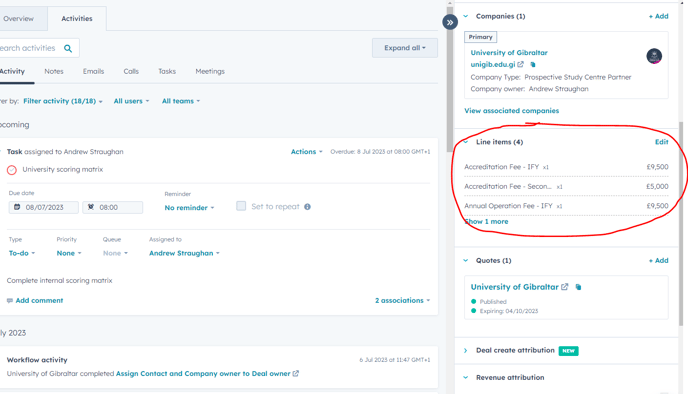
To add a line item:
- On the right hand side of your deal click Add Line Items > Select from Product Library
- Choose all your fees from the folders > click Add (you need a separate line item for each type of fee)
- Change your Unit Price to reflect the amount you wish to charge the customer in Year 1 of the pricing.
- Change your Quantity of the exam and registration fee to reflect the amount of students you wish to display on your deals – this should be the customers target for year 1 of this contract.
- Note that the remaining columns are information for contract purposes – change the prepopulated fees to reflect figures you would like in the contract. Important! Only change the figures in the pre-populated columns. Do not add any figures where it is blank and Do not change the pre-populated drop-down names.
- Save and click update deal amount.
Draft Contracts Issued - MM review
Moving to this stage will require completion of the Commercial Group form and a profitability template. Both of which should be uploaded in the centre proposals area on SharePoint and link put on HS. It will be automatically sent to Maria and Tom for review when you move to this stage.
All of the change control fields fields needed to automatically populate the contract are required to be filled in. These include partner name, address and signatory details.
An email will be sent to contracts manager to inform of an incoming contract in contractbooks and the details of the minimum numbers so please still make sure everything is perfect before you move the deal to this stage.
Important!
Check your Line items at this point to make sure the fees you have put in for the 5 years are correct.
You should also re-check your target numbers to make sure they are correct.
As afore mentioned, if you have multiple deals/centres going on the one contract, it’s important to fill in each of the deals with all of this information but keep the contract information the same, then let the contracts manager know you wish to combine them.
Once a contract has moved to this stage, the contract is automatically created, if you then make changes to the contract in contractbooks, it is good practice to change the properties in HubSpot for consistency.
If you need to re-create the contract because you made a mistake, move the deal back a stage then move it back to Draft Contract Issue when you have changed the fields, this will generate another contract and you will need to ask the contracts manager to delete the initial mistake one.
Submitted to Commercial Group
Once Tom and Maria are happy with the changes, and have let the AM know, the deal can be moved to submitted to Commerical Group by the AM.
SLT Approved - Send for Signature
Once SLT has approved the change, MM will inform the AM and the AM can move to this stage. This triggers the contract manager to send the contract for signature.
Contracted
When a customer has signed the contract, the deal will automatically move to the contracted stage. An email will go out at this point to let Jim know to issue the accreditation invoice, if there is one and for the contracts manager to populate MyNCUK with the updated fees.
Contract not agreed
If the contract is not going ahead, move the deal to this stage and select a reason.