%20(2).png?width=1280&height=539&name=666079-ncuk-strap-logo-red-logo-no-background%20(1)%20(2).png)
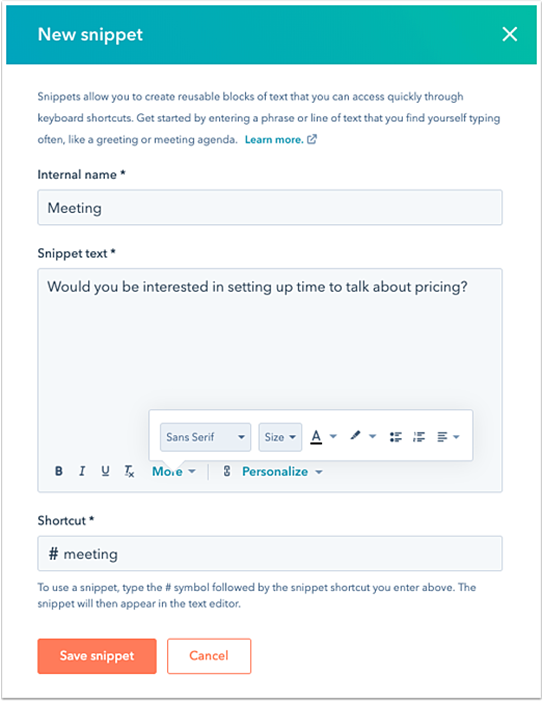
- Go to Conversations -> Snippets, in the upper right corner, click Create Snippet
- In the dialog box, in the Internal name field, enter a name for the snippet.
- Enter the body of your snippet in the Snippet text section
- To modify the text, use the formatting options at the bottom of the editing window.
- To edit the font style and size, or edit the text alignment, click the More dropdown menu.
- To add hyperlinked text, click the link icon link.
- Enter a name for the snippet shortcut in the ‘Shortcut’ section. This shortcut will be used to insert the snippet in a record, email template, live chat conversation, or when logging an activity.
- When you've finished creating your snippet, click Save snippet.
- You can also organize your snippets into folders:
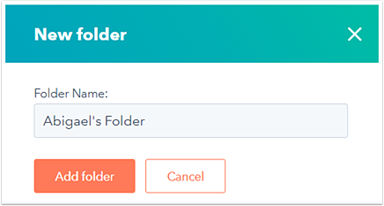
- On the Snippets dashboard, click New folder.
- In the dialog box, enter a name for your folder, then click Add folder.
- To move a snippet into a folder, hover over the snippet and click More -> Move -> Select a folder -> Move.
- Use snippets to:
-
- leave notes about prospects in the CRM
- quickly pull in important details when writing an email to a prospect/as quick response during a live chat conversation.
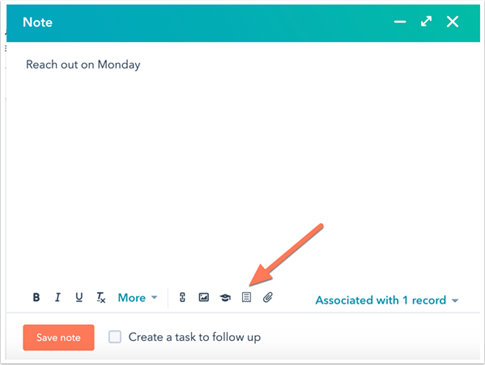
- There are two ways to add a snippet:
- Type the # symbol into the text editor
- Start typing the snippet shortcut
- Select the snippet from the dropdown menu.
- The snippet will automatically populate in the text editor.
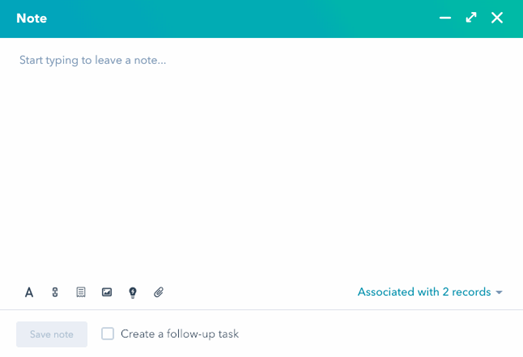
- At the bottom of the text editor, click the snippets icon, then select a snippet from the dropdown menu.